Android & iPhone

How to Share Wi-Fi Passwords Instantly Between iPhone, Android, and PC

Learn how to share home Wi-Fi credentials seamlessly across iOS, Android, and Windows devices using native proximity sharing, QR codes, and built-in system tools without typing complex keys.

Quick Summary & Key Takeaways

  • Objective: Learn how to share home Wi-Fi credentials seamlessly across iOS, Android, and Windows devices using native proximity sharing, QR codes, and built-in system tools without typing complex keys.
  • Estimated Time: Approximately 6 minutes following our step-by-step instructions.
  • Safety Recommendation: Ensure your device battery is above 30% and preserve any important files or passwords before modifying system settings.
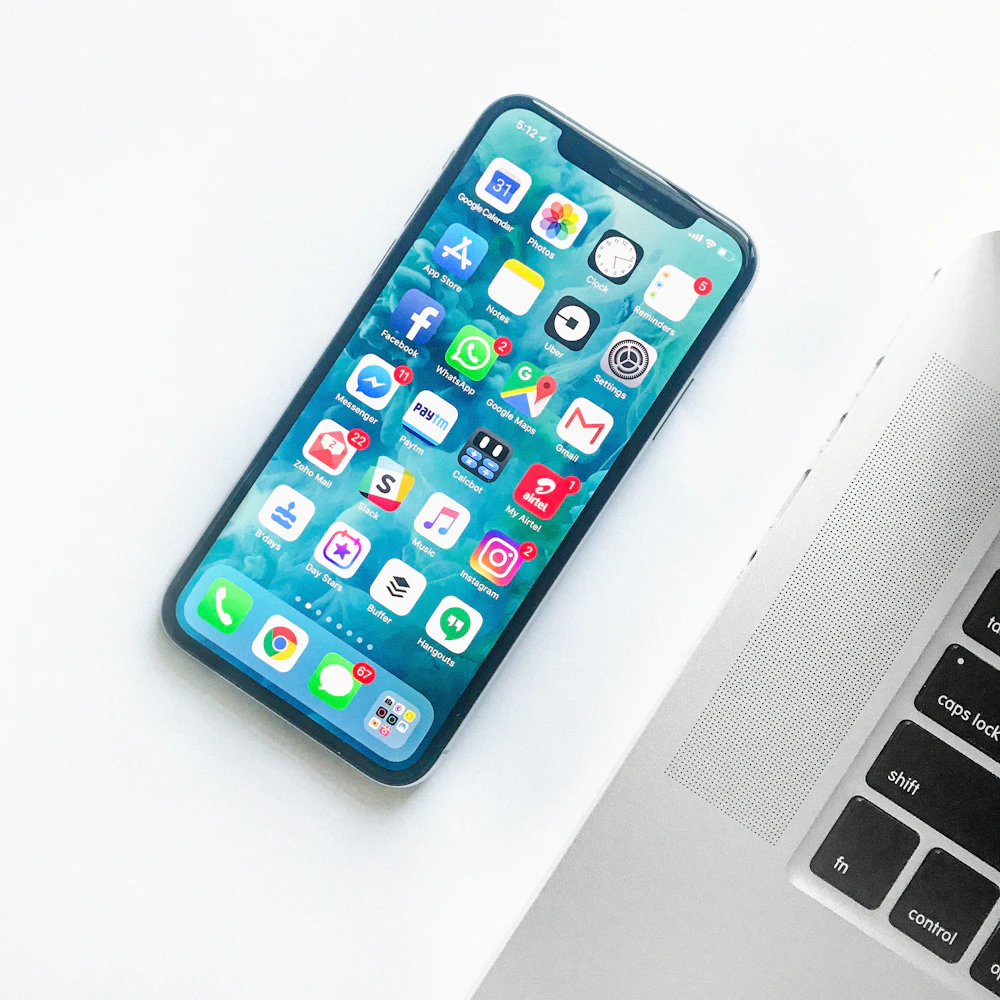
Two modern smartphones sharing wireless connection via proximity screen
Sharing home wireless network credentials across mobile and desktop platforms.

When guests or family members visit, reciting long alphanumeric Wi-Fi passwords with special characters is frustrating and error-prone. Modern operating systems have introduced streamlined, secure methods to share network credentials in seconds.

Whether you are sharing Wi-Fi from an iPhone to an iPad, bridging the gap between Android and iOS, or connecting a Windows laptop, here is how to share network access safely without revealing your master password.


Method 1: iPhone to iPhone/iPad (Apple Instant Proximity Sharing)

Apple devices can share Wi-Fi passwords automatically using Bluetooth and Wi-Fi proximity handshakes:

  1. Ensure both devices have Bluetooth and Wi-Fi turned on and are within a few feet of each other.
  2. Make sure the guest's Apple ID email is saved in your Contacts app.
  3. On the guest's iPhone or iPad, open Settings > Wi-Fi and tap your home network name.
  4. On your unlocked host iPhone, a pop-up card will appear saying "Share Your Wi-Fi?".
  5. Tap Share Password. The guest's device connects immediately without typing a single character.
  6. Tap Done to finish.
Apple iPhone Wi-Fi Sharing
Sharing Wi-Fi credentials between nearby iOS devices.

Method 2: Android to Any Device Using Native Wi-Fi QR Codes (Cross-Platform)

Android includes a standardized Wi-Fi QR code generator that works across all smartphones, including iPhones:

  1. Open Settings > Network & internet > Internet (or Connections > Wi-Fi on Samsung Galaxy).
  2. Tap the Gear icon next to your currently connected Wi-Fi network.
  3. Tap Share or QR code at the bottom of the screen.
  4. Verify your biometric fingerprint or PIN lock to reveal the QR code.
  5. Have the other person open their native Camera app (iPhone Camera or Android Camera/Google Lens) and point it at your screen.
  6. A banner will appear: "Join [Network Name] Network". Tap it to connect instantly.

Method 3: How to View and Share Wi-Fi Password on Windows 11 for Laptop Guests

If you are on a Windows 11 laptop and need to retrieve the saved network key for a friend:

  1. Press Windows Key + R, type ncpa.cpl, and press Enter to open Network Connections.
  2. Double-click your active Wi-Fi adapter.
  3. Click Wireless Properties.
  4. Switch to the Security tab.
  5. Check the box for "Show characters" (administrator confirmation required).
  6. The exact Wi-Fi security key is displayed in plain text for your guest to enter.

Frequently Asked Questions

Why is the Apple Wi-Fi share popup not appearing on my iPhone?

Ensure both devices have Wi-Fi and Bluetooth toggled on, Personal Hotspot is turned off, and each person's Apple ID email is saved in the other's Contacts address book.

Can an iPhone scan an Android Wi-Fi QR code without a third-party app?

Yes. The standard iOS Camera app has built-in QR recognition. Simply pointing the camera at an Android Wi-Fi QR code generates an instant 'Join Network' prompt.

Is sharing Wi-Fi via QR codes secure against neighbor snooping?

The QR code encodes your network SSID and WPA2/WPA3 passphrase in standard plaintext formatting (WIFI:T:WPA;S:...;P:...;;). Only share the QR code with people you trust in your home or office.

Is it safe to delete the 'Windows.old' folder after a major Windows 11 feature update?

Yes, provided your computer has functioned stably for several days and you have no intention of rolling back to the previous Windows version. Use Settings > System > Storage > Temporary files and check 'Previous Windows installations' to safely reclaim 15GB to 30GB of SSD storage.

Why does Windows 11 use 4GB to 6GB of RAM at idle?

Modern Windows uses a caching mechanism called SuperFetch/SysMain. It pre-allocates unused physical RAM to cache frequently accessed applications and system DLLs for instant launching. If an active game or heavy application requests memory, Windows instantly relinquishes cached RAM.

Do third-party 'PC cleaner' and 'registry optimizer' programs speed up Windows 11?

No. Microsoft explicitly warns against using third-party registry cleaners. Modern Windows handles registry hives efficiently, and automated registry scrubbers frequently delete essential COM class registrations, triggering unpredictable system crashes.

Sarah Chen

About the Author: Sarah Chen

Mobile Systems Specialist

Sarah is a mobile operating system specialist focusing on Android internals, battery optimization, and iOS file management.